Tuesday, June 16, 2015

What is Thin Client Computing?

  • What is Thin Client Computing?
During the late 70s, a “dumb terminal,” or a computer without a hard drive, was being used
They were similar to a thin client in that all processing was done from the CPU or computer they were connected to
Hosting information in the server data center and granting users’ access via what were called “dummy terminals”
A dumb terminal was simply an output device or display monitor that had no computational power to do anything besides display, send and receive text.
A thin client today is a compact piece of computing technology that accesses data remotely through a connection to a server and brings a virtual desktop to the user.

http://www.devonit.com/thin-client-education/what-is-thin-client-computing


  • How Do Thin Clients Work?
Thin clients run an operating system locally and carry flash memory rather than a hard disk.
Since it has no hard drive or local storage, all applications and data are stored on a central server,
Thin clients allow for local printing, audio and serial device support, web browsing, terminal emulation and can combine local processing with network computing.

A major part of a thin client solution is the thin client management console.
The management console,is a virtual appliance that can be installed on your Server to remotely manage all of the deployed thin clients.
It then can create, clone, and push out the customized image to the deployed thin client devices.
This allows IT administrators to freely access any device that is connected to the server, as well as pushing through certificates, software packages, as well as upload full disk images.
http://www.devonit.com/thin-client-education/how-do-thin-clients-work


  • Benefits of Using Thin Clients

1.Cost Savings

1.1 Thin Clients Reduce Multiple Costs
IT support costs
Upfront purchasing costs
Capital costs
Use of space in data center
Licensing costs
Total administration and operating cost reduction up to 70%

1.2 Reduces Energy Bill by 97%
Thin clients consume an average of 8-20 watts compared to a 150 watt PC
This reduces carbon footprint

2.Simplified Management

2.1 The Benefits of Thin Client Management are
All software and hardware upgrades, security policies, application changes, etc. can be made in the data center
IT personnel are not required (as they are with PCs) to fix individual problems at the end user desktop location
Less downtime, increasing productivity amongst End Users and IT personnel
Centralized and simplified back up of desktops, laptops, and other client access devices

3.Enhanced Security

3.1 The Benefits of Thin Client Security Include
Thin clients are protected from the use of unauthorized software or the introduction of viruses
Data cannot be copied to a disk or saved to any other location than the server
Centralized processing makes it easy to manage and monitor the system
Simplify security, protect intellectual property, ensure data privacy

4.Increased Productivity
4.1 Systems can be Virtually Preconfigured, Packaged and Put into Operation in Minutes
Quickens setup and enables flexibility, without needing a specialist staff
Productivity can increase, while standard PCs have long repair times that cause delays and higher costs
Access the same apps and data from virtually anywhere

http://www.devonit.com/thin-client-education/benefits-of-using-thin-clients


  • Green Computing with Thin Clients
Thin clients consume an average of 8-20 watts compared to a average of 150 watt per PC.
Thin clients significantly lower a company’s environmental footprint by reducing energy consumption and CO2 emissions during use.
Cost savings from electricity can be reinvested.
Thin client computing also lowers operating and administration costs.
Because thin clients have a longer life span and are in built in a significantly smaller form factor,  they last longer and can be recycled.
Thin Clients are RoHS compliant. They meet the regulation regarding the restriction of the use of certain hazardous substances in electrical and electronic equipment.
http://www.devonit.com/thin-client-education/green-computing

why VDI?


  • why VDI?
Virtual Desktop Infrastructure delivers a cost effective mode of accessing applications securely from a data center and grant access to employees around the world.
http://www.locuz.com/vdi-byod.html

  • Why VDI? (5 Reasons people really use VDI)

Datacenter-based desktops, without the hassle of RDSH
The primary purpose of VDI is that you get the benefits of hosting desktops in your datacenter without the hassle of Remote Desktop Session Host (RDSH) / Terminal Server.


VDI Pros and Cons

A Virtual Desktop Infrastructure (VDI) is designed to run desktop operating systems and applications inside virtual machines on servers in a data centre, and these are often referred to simply as virtual desktops
The virtual desktop is accessed via a desktop PC client or thin client via a remote display protocol, therefore many of the features previously loaded on local systems are still accessible but are centrally managed.

VDI Advantages / Pros
Typically, if a user experienced a PC problem previously, a member of IT staff must physically go to the PC to fix the problem. This can prove difficult if the user is at a remote site or is working out in the field. Either the IT technician must travel out to visit the user, or the PC must be sent back to the main office for repair. In either case, productivity suffers as the user no longer has a machine, or the technician is out of the office. With a VDI, most problems such as this can be dealt with remotely from within the data centre.

Desktop applications must be constantly updated, or patches and security updates frequently installed to protect systems.
On occasion, the operating system may be upgraded across the organisation
Technicians previously had to go to every PC in order to update, but a VDI enables this to be within the data centre and then rolled out across the company en masse
The VDI user is able to switch between operating environments, such as Windows 8 and Windows XP
VDI simplifies desktop management and administrative tasks as every attached workstation can use the same image.
A new user of the system can also be up and running quickly.
in the event of a single session failure for a user, a VDI allows the IT department to isolate that machine from others so that the problem does not spread.
VDI also allows the user to access business email and corporate documents from their own personal device, from anywhere.
Desktop security, backup and data protection are centralised, therefore the integrity of the applications and their data can be safeguarded at the data centre.

VDI disadvantages / cons
Implementation of a VDI requires a major investment in server hardware.
Storage and network infrastructure may also have additional cost implications, exceeding the expense of purchasing a basic PC for every individual user.
If that one server goes down, all users will be unable to work, whereas if a single PC goes down, only one user is affected

Although all workstations can use the same image, unique images are required for each of those users who needs a different set of applications or who needs the capability to save personal settings or install their own applications. This quickly multiplies the storage requirement on the VDI server.

when users download and install personal software, such as instant messaging. Difficulties can arise through the accidental downloading of malware applications. If this happens to a remote user, often the problem does not come to light for some time.

operational and support costs are lower, which can prove to be a more significant long-term saving than server hardware investment

http://hardpoint.eu/vdi-pros-and-cons


  • Evaluating Your Options for Desktop Virtualization (Part 1)

VDI, or Virtual Desktop Infrastructure, is a technology in which a server is used to host desktop operating systems. This technology is similar to what is used for server virtualization, except that there is usually a mechanism in place to link users to individual virtual desktops so that each user is connected to a different virtual desktop.
http://www.virtualizationadmin.com/articles-tutorials/vdi-articles/general/evaluating-options-desktop-virtualization-part1.html


  • Microsoft Virtual Desktop Infrastructure (VDI) Explained

A centralized desktop delivery solution, Microsoft Virtual Desktop Infrastructure (VDI) is. The concept of VDI is to store and run desktop workloads including a Windows client operating system, applications, and data in a server-based virtual machine (VM) in a data center and allow a user to interact with the desktop presented onto a user device via Remote Desktop Protocol (RDP)
http://blogs.technet.com/b/yungchou/archive/2010/01/06/microsoft-virtual-desktop-infrastructure-vdi-explained.aspx

Why BYOD

Why BYOD

Increased productivity and innovation
Personal devices tend to be more cutting-edge, so the enterprise benefits from the latest features. Also users upgrade to the latest hardware more frequently.

Employee satisfaction
Your people use the devices they have chosen and invested in—rather than what was selected by IT
Allowing employees to use personal devices also helps them avoid carrying multiple devices.

Cost savings
BYOD programs sometimes save budget by shifting costs to the user, with employees paying for mobile devices and data services
However, this often results in little to no savings


Consider before adopting BYOD

Personal cost
As mobile devices replace company-provided laptops, certain employees will expect the organization to pay for these new devices as well.

Enterprise cost
Will you have the resources to manage BYOD safely?
Are you willing to set up a private app store for maximum control?
Will your service desk be able to handle the inevitable flood of support calls?

Enterprise control
Certain job functions require access to very sensitive data,IT needs complete control over the mobile devices and applications installed on them


http://www.ibm.com/mobilefirst/us/en/bring-your-own-device/byod.html


  • employees are demanding access to corporate networks, applications, and information anywhere at any time with any device and managing this isn’t always easy
However not every employee is mobile, and not every employee needs constant access.
Desktop virtualization makes it possible for IT to deliver desktops and apps straight from the data center to any device, making device management radically simpler
Thin client laptops offer security for those mobile users
Rather than the desktop being stored locally on a remote client, a virtualized version of the desktop is stored on a remote central server, allowing users to run an operating system and applications from a thin client laptop or a standard desktop thin client; streamlining a desktop virtualization platform

Desktop virtualization(VDI) addresses two key challenges– security and device management.
By enabling IT to centrally manage and secure desktops, applications, and data in the data center, business information is always secure
Even when data is stored on the end point device, IT has the ability to remotely erase data in the event the device is lost or stolen.

http://www.devonit.com/blog/thin-client-laptops-help-align-desktop-virtualization-with-byod

VDI (Virtual Desktop Integration) implementation

VDI(Virtual Desktop Integration) implementation

gathering requirements
identifying stakeholders
establishing milestones
determining goals for success
conducting research
selecting vendors
planning test/production rollouts
gathering feedback
going live
closing the loop on any residual issues


1.  Not planning enough resources
Your virtual machines (and users) are going to be extremely hungry for CPU cycles, memory, storage, and network bandwidth
Don't provision the resources you need today or tomorrow – build out the infrastructure for next year or, better yet, three years from now
Monitor how the resources are being used before, during and after the VDI rollout.
make sure you're inherently familiar with your network traffic, subnets, and the hosts/applications running across these


2.  Not taking advantage of existing resources
Some vendors might (happily) convince you that you have to run out and buy all new hardware for your data center, not to mention a fleet of shiny thin clients for your users
Don't scrap older desktops in favor of thin client hardware
Let them wear out then replace them
Don't assume a Windows virtual desktop has to be connected to from a computer or thin client – tablets and mobile devices can also be used (depending on your network and remote access capabilities) which is where your BYOD program can really come in handy. 
http://www.techrepublic.com/blog/10-things/10-vdi-mistakes-to-avoid/


  • VDI at the Desktop: Thin Clients or PCs for Better TCO?

VDI requires upfront costs, so by the time IT gets to the desktop side; further upfront costs need to be minimized.
Keeping existing PCs appears to be “cheaper” then switching to thin clients for VDI

A PC also known as a thick client, is comprised of a lot of components compared to a thin client.
With each PC you have (at minimum) a hard drive, media ports, OS, applications and anti-virus software.
PCs typically have a 4 year expected life where thin clients have a 6 year expected life
The media ports and hard drive open up the possibilities for a security breach
At the same time the user then can install their software which also increases security risks.
PCs are typically un-managed desktop devices limiting the security capabilities for the desktop user.

Then a thin client only has the thin client OS and a small about of applications if required.
Thin clients are locked down devices eliminated the users’ ability to download unless permitted and all devices can be managed through a thin client management console
Thin Clients are cheaper then PCs
With thin clients, the cost per unit really depends on the unit each user requires. Someone whose daily tasks entail the use of simple applications such as outlook

Exploring the Cost per User for VDI
In most VDI deployments, organizations transition from PCs to thin clients over time.
While every organization is different, we have typically seen around 1/3 of VDI users move to thin client devices and the other 2/3s utilize software options such as VDI Blaster.
This software converts PCs that are towards the end of their life spans to make them (functionally) into thin clients.
Microsoft licensing, customers only need to purchase VDA licenses for the percentage of their devices that are thin clients or not covered under Microsoft SA licensing as they start replacing their PCs over time.

1-Hardware Cost
1.1 Thin Client Software for Physical PCs
1.2 Thin Clients
1.3 Average Cost Per User of Thin Client Device or Software

2 Licensing Costs
2.1 VDI Software
2.2 Microsoft VDA License


1 Overall VDI Initial Cost per User Comparison

1.1 Thin Client
1.1.1 VDI COMPONENT
Server
Storage
Thin Client/Repurposed PC
VDI Software
Microsoft License


1.2 PC
1.1.1 VDI COMPONENT
Server
Storage
Thin Client/Repurposed PC
VDI Software
Microsoft License
   
http://www.devonit.com/blog/vdi-at-the-desktop


  • Thin Client Assessment with Total Cost of Ownership(TCO) Analysis

1.Evaluation
1.1 Capital Savings
1.2 Operation Savings
1.3 End –User Operation Savings
1.4 Downtime Savings
1.5 Energy Savings
1.6 Desktop Related Cost Savings for 1, 2, 3, 5, and 10 Years!

http://www.devonit.com/thin-client-education/switching-to-thin-clients


  • Advantages in Converting to Desktop Virtualization

Deploying virtual desktops lets you create a more flexible IT infrastructure so your business becomes more efficient, effective, secure, and manageable.
This method deploys applications and desktops faster and more consistently to a wider variety of users at a lower cost while improving service levels.

Other than the initial start up cost, particularly the costs incurred by obtaining servers, the price drastically lowers deployment costs when compared to a PC environment
Thin clients alone can last between 7-10 years as compared to their PC counterparts.
saving nearly $1000 per seat in the long run in maintenance costs
fewer moving parts result in fewer broken units.
thin clients use anywhere from 3-13 watts of power, which is a considerable energy savings compared to PCs that range anywhere from 60 to 150 watts

desktop virtualization(VDI) can increase the security of your business in two ways
Firstly, all data is stored on the server end, so devices themselves have no information physically on them
As laptop thefts are a big source of leaked information, this is an outstanding security benefit
the nature of thin clients makes them very resistant to viruses.  Since nothing on the device is persistent, a simple reboot is all that’s needed to remove any malicious software that may find its way to a user’s terminal.

Desktop Virtualization can significantly decrease maintenance and support costs
Adding new terminals is a simple process
Reduced downtime with server or client hardware failures
Decreased cost of new application deployment
Desktop image management capabilities
Longer refresh cycle for client desktop infrastructure
Secure remote access to the enterprise desktop environment
Reduce costs by increasing energy efficiency and requiring less hardware with server consolidation.
Build up business continuity through improved disaster recovery solutions and deliver high availability


http://www.devonit.com/blog/advantages-in-converting-to-desktop-virtualization


  • 11 Steps to Roll-Out a Virtual Desktop Infrastructure

1 Choose the right virtualization approach
1.1 VDI vs Remote Access Terminal Services
1.2 the entire desktop environment on a server as virtual machine
1.3 Remote Access Terminal Services- host applications on a central server and present those applications to those users

2 Assess the network before the development
2.1 verify adequate bandwidth
2.2 enough bandwidth to support the peak load of each virtual desktop user

3 Evaluate thin client terminal management software systems
3.1 test run different thin client management software to determine best interface

4 develop a desktop virtualization server strategy
4.1 cpu,memory,I/O resources to support the peak processing demands of users.

5 Upgrade storage to support desktop virtualization
5.1 data center SAN needs enough additional storage to host all virtual desktops

6 Choose best thin client for each end user
6.1 end users may need different hw requirements
6.2 evaluate applications used in different roles

7 deploy desktop virtualization in phases
7.1 pilot rollouts
7.2 management buy-in

8 be aggressive with endpoint security

9 take strong central security measures
9.1 address access control
9.2 ensure that each user is configured with least-privillege roles and policies

10 devise an implementation plan
10.1 xx amount of thin clients per year over xx amount of years
10.2 depending on corporation size this could be weeks months years

11 implement and test backup services
11.1 backup servers with great regularity to ensure successful disaster recovery(DR)
11.1 backup data frequently / consistently

Virtual desktops are critical to accelerate application deployment and simplify application migration
VDI lets you decouple operating system,application and data from hardware and store them in a centralized location

http://www.devonit.com/blog/11-steps-to-roll-out-a-virtual-desktop-infrastructure

  • Sample VDI Assessment & TCO Calculation
http://www.devonit.com/wp-content/uploads/2014/02/Thin-Client-TCO-Calulator-Sample-Report-Calculator-I.jpg


  • No consideration to Application Virtualization:
 Enterprises typically have to face issues such as installing every application into a standard desktop image, creating multiple images based on different user groups etc., therefore an assessment to analyze important details like total number of application users, average load time etc. needs to be captured. Application Virtualization also enables you to manage any endpoint as a generic device, making complex OS upgrades much easier.

Improper Design: VDI consists of three key components – Server, Storage and Network. VDI design should be done keeping in mind the maximum scalable limit and minimal downtime of these three components.

Assessing customer’s core applications, operating environment, user profiles and user experience is the key of planning for any VDI rollout.

Step 1: Assess
Defined metrics should be used to capture information on utilization of CPU, memory, network, storage and other compute resources.

Step 2: Plan
The Planning phase is critical as it requires developing high level design documents including specifications of VDI components such as hardware, hypervisor, connection broker, gateway etc

Step 3: Design
 if the user requires a USB device to be plugged into the client device, the device and operating system must support USB redirection or if the user requires a multimedia application the client device must support a protocol that can provide adequate user experience

Step 6: User Migration
Migrations Plans must be strategized for seamless user data migrations and profile migrations from existing physical desktops to virtual desktops using thirty party tools or manual methods.

http://www.microland.com/best-practices-for-a-highly-effective-vdi-environment


  • Step 1: Develop the business case
Start by providing stakeholders with the documentation necessary to support your project. This information should include understanding the current mechanisms and challenges around physical desktop management, including refresh durations and complexity, Windows 7 deployment, OS and application patching and maintenance procedures, offshore and non-employee access, and finally, regulatory compliance, which is especially necessary in protecting sensitive information.
you'll want to identify the organizational costs associated with physical desktop management so that you can justify the migration to a virtual desktop infrastructure.

Step 2: Understand the existing infrastructure
determine the percentage of your server environment that is virtualized and the hypervisor vendor mix along with the distribution.
Look at the current state of network access for remote users, as well as the current state of security architecture for these users.
 determine if you should utilize new storage for your desktop infrastructure, or if you can leverage the existing infrastructure. Think about evaluating protocol options such as Fibre Channel, iSCSI or NAS, and consider which performance and monitoring tools are going to be used to evaluate storage and performance.

Step 3: Determine the desktop user environment
what percentage of users are local versus remote?
 Break out the percentage of non-employee users (contractors, partners) that also have to be included in the planning.
determine the end-user experience requirements. Consider important details such as user profile persistence, single vs. multiple desktop needs, granular USB redirection, printing requirements, audio profile (one-way or two-way), and monitor support.
 conduct an application virtualization assessment to analyze and capture important metrics such as executable size, device drivers installed per application, total number of application users and average load time.
Application virtualization is critical to accelerating application deployment and simplifying application migration. By decoupling applications and settings from the OS, you can manage any endpoint as a generic device, making complex OS upgrades a non-event.


Step 4: Assess the physical desktop environment
Analyze the current desktop environmental metrics, including network, CPU, storage and memory statistics. Also assess the user personality and profile location, including for mobile users, off-line needs and stationary task workers
 Prioritize users based on complexity factors derived from the assessment. Determine sizing factors within the virtual infrastructure based on the assessment. This should include peaks in utilization, storage implications for monolithic 1:1 mapping of images versus a linked clone approach for deployment and performance evaluations from desktop to storage.

Step 5: Mapping the solution options
 Look at your remote protocol choices and their impact across network, security and performance. 

Step 6: The pilot implementation
Create a framework for pilot implementation on a subset of users. Define various test metrics and scenarios as well as success criteria for the pilot. In order to conduct a successful proof-of-concept or technology bake-off, the three following things need to be clearly understood about your environment and requirements:
--What does success look like for your organization? Setting up measurable, deterministic success criteria for your specific data center environment is imperative.
--Have you benchmarked the current end-user experience in the physical realm? If end-user experience suffers in the virtualized environment, the whole project is likely to collapse.
--Have you ensured that all of the interlocking products that comprise the overall proof-of-concept environment are configured correctly, optimally and in a supportive fashion? If they are not, your results will be meaningless.
Based on the findings, develop a plan and design a VDI framework that includes best practices, deployment reference architectures, milestones and project management resources

Step 7: Implement and manage VDI
At this stage, you are finally ready to implement VDI. Determine project management resources, schedule a rollout date, develop project timelines and select the ideal resources to meet the business and IT needs. Part of the process will be to create a feedback loop for continual process improvement. You will also want to capture performance metrics so optimal performance is achieved.

http://www.infostor.com/index/articles/display/3463093630/articles/infostor/storage-management/virtualization/2010/august-2010/seven-steps_for_a.html


  • VDI project plan, part one: Understanding product options

 Virtual desktop infrastructure is heavily dependent on the network, so it's important to be familiar with the well-known display protocol vendors and the newcomers.
VDI-in-a-Box offers a quick deployment process with better pricing than XenDesktop. It's up to you whether to go with the age-old XenDesktop or VDI-in-a-Box, which is more for small and medium-sized businesses (SMBs).

http://searchvirtualdesktop.techtarget.com/guides/VDI-pilot-project-guide-How-to-ensure-VDI-implementation-success

Saturday, May 23, 2015

What is a DLL?

What is a DLL?
A DLL is a library that contains code and data that can be used by more than one program at the same time. For example, in Windows operating systems, the Comdlg32 DLL performs common dialog box related functions. Therefore, each program can use the functionality that is contained in this DLL to implement an Open dialog box. This helps promote code reuse and efficient memory usage.
https://support.microsoft.com/en-us/kb/815065

Bill of quantities

  • Bill of quantities
A bill of quantities (BOQ) is a document used in tendering in the construction industry in which materials, parts, and labor (and their costs) are itemized. It also (ideally) details the terms and conditions of the construction or repair contract and itemizes all work to enable a contractor to price the work for which he or she is bidding.
http://en.wikipedia.org/wiki/Bill_of_quantities

  • An itemized list of materials, parts, and labor (with their costs) required to construct, maintain, or repair a specific structure.
http://www.businessdictionary.com/definition/bill-of-quantities-BOQ.html

Tuesday, March 31, 2015

Model–view–presenter (MVP)


  • Model–view–presenter (MVP)
Model–view–presenter (MVP) is a derivation of the model–view–controller (MVC) architectural pattern, and is used mostly for building user interfaces.
http://en.wikipedia.org/wiki/Model%E2%80%93view%E2%80%93presenter

Wednesday, February 25, 2015

Glueware

  • Glueware is generally built on open Internet standards that support many different technologies and communication protocols. All of the inter- and intra-application communication and processing is done through the Internet. Glueware enables real-time collaboration of local applications and Web services, and automates their processes. For example, an organization might have different software systems for accounting, payroll and Web services. Glueware essentially "glues" all of them together so that each of the different systems can communicate and interact with each other, therefore working as an integrated system.
http://www.techopedia.com/definition/7424/glueware

Saturday, January 3, 2015

Dozer framework

  • Dozer framework
Dozer is a Java Bean to Java Bean mapper that recursively copies data from one object to another. Typically, these Java Beans will be of different complex types.
Dozer supports simple property mapping, complex type mapping, bi-directional mapping, implicit-explicit mapping, as well as recursive mapping. This includes mapping collection attributes that also need mapping at the element level.
http://dozer.sourceforge.net/

Tuesday, September 9, 2014

software

  • Google Play
Google Play, formerly the Android Market, is a digital distribution platform operated by Google. It is the official app store for the Android operating system, allowing users to browse and download applications developed with the Android SDK and published through Google.
http://en.wikipedia.org/wiki/Google_Play


  • App Store (iOS)
The App Store is a digital distribution platform for mobile apps on iOS, developed and maintained by Apple Inc. The service allows users to browse and download applications that were developed with Apple's iOS SDK.
The apps can be downloaded directly to an iOS device, or onto a personal computer via iTunes (also developed and maintained by Apple Inc.).
http://en.wikipedia.org/wiki/App_Store_%28iOS%29

  • Instagram
Instagram is an online mobile photo-sharing, video-sharing and social networking service that enables its users to take pictures and videos, apply digital filters to them, and share them on a variety of social networking services, such as Facebook, Twitter, Tumblr and Flickr.
Users are also able to record and share short videos lasting for up to 15 seconds.
Instagram is distributed through the Apple App Store, Google Play, and Windows Phone Store.
Support was originally available for only the iPhone, iPad, and iPod Touch;
in April 2012, support was added for Android camera phones.
http://en.wikipedia.org/wiki/Instagram


  • Vine is a short-form video sharing service. Founded in June 2012, it was acquired by microblogging website Twitter in October 2012, just prior to its official launch.
The service allows users to record and edit six-second long video clips, which can be then published through Vine's social network and shared on other services such as Facebook and Twitter. Vine's app can also be used to browse through videos posted by other users, along with groups of videos by theme, and trending videos.
http://en.wikipedia.org/wiki/Vine_%28software%29

  • WhatsApp
WhatsApp Messenger is a proprietary, cross-platform instant messaging subscription service for smartphones and selected feature phones that uses the internet for communication. In addition to text messaging, users can send each other images, video, and audio media messages as well as their location using integrated mapping features.
http://en.wikipedia.org/wiki/WhatsApp


  • Wickr
Wickr (pronounced "wicker") is the name of a proprietary instant messenger for iPhone and Android and of the company that produces it. Wickr allows users to exchange end-to-end encrypted and self-destructing messages, including photos and file attachments
http://en.wikipedia.org/wiki/Wickr

hardware

  •  Smartphone
 A smartphone (or smart phone) is a mobile phone with more advanced computing capability and connectivity than basic feature phones.
 Early smartphones typically combined the features of a mobile phone with those of another popular consumer device, such as a personal digital assistant (PDA), a media player, a digital camera, and/or a GPS navigation unit. Later smartphones include all of those plus the features of a touchscreen computer, including web browsing, Wi-Fi, and 3rd-party apps.
 http://en.wikipedia.org/wiki/Smartphone


  •  iPod Touch
 The iPod Touch (stylized and marketed as iPod touch) is a multi-purpose pocket computer designed and marketed by Apple Inc. with a user interface that is touchscreen-based. It can be used as a music and video player, digital camera, handheld game device, and personal digital assistant (PDA).It connects to the Internet through Wi-Fi base stations and is therefore not a smartphone, though its design and iOS operating system are very similar to Apple's iPhone.
 http://en.wikipedia.org/wiki/IPod_Touch

  •  iPhone
 a line of smartphones designed and marketed by Apple Inc.
 It runs Apple's iOS mobile operating system
 There are seven generations of iPhone models, each accompanied by one of the six major releases of iOS.
 http://en.wikipedia.org/wiki/IPhone


  •  A Chromebook is a laptop running Chrome OS as its operating system. The devices are designed to be used primarily while connected to the Internet, with most applications and data residing "in the cloud". A Chromebook is an example of a thin client.
http://en.wikipedia.org/wiki/Chromebook

  • iPad
a line of tablet computers designed and marketed by Apple Inc. which runs Apple's iOS.
The user interface is built around the device's multi-touch screen, including a virtual keyboard.
The iPad has built-in Wi-Fi and, on some models, cellular connectivity
An iPad can shoot video, take photos, play music, and perform Internet functions such as web-browsing and emailing. Other functions—games, reference, GPS navigation, social networking, etc.—can be enabled by downloading and installing apps.
http://en.wikipedia.org/wiki/IPad

  • iPad Mini
a line of mini tablet computers designed, developed, and marketed by Apple Inc
It is a sub-series of the iPad line of tablets, with a reduced screen size of 7.9 inches, in contrast to the standard 9.7 inches
http://en.wikipedia.org/wiki/IPad_Mini


  • Google Nexus
a line of consumer electronic devices that run the Android operating system.
The product family consists mostly of mobile devices—five smartphones and three tablet computers
the devices currently available in the line are the Nexus 5 smartphone (made with partner LG Electronics), second generation Nexus 7 tablet (made with Asus), and Nexus 10 tablet (made with Samsung).
Nexus devices are the first Android devices to receive updates to the operating system.
http://en.wikipedia.org/wiki/Google_Nexus

  • Kindle Fire
The Kindle Fire is a mini tablet computer version of Amazon.com's Kindle e-book reader.
Kindle Fire has a color 7-inch multi-touch display with IPS technology and runs a custom version of Google's Android operating system called Fire OS.
The device—which includes access to the Amazon Appstore, streaming movies and TV shows, and Kindle's e-books
http://en.wikipedia.org/wiki/Kindle_Fire


  • Tablet computer
A tablet computer, or simply tablet, is a mobile computer with display, circuitry and battery in a single unit. Tablets are equipped with sensors, including cameras, microphone, accelerometer and touchscreen, with finger or stylus gestures replacing computer mouse and keyboard. Tablets may include physical buttons, e.g., to control basic features such as speaker volume and power and ports for network communications and to charge the battery. An on-screen, pop-up virtual keyboard is usually used for typing. Tablets are typically larger than smart phones or personal digital assistants at 7 inches (18 cm) or larger, measured diagonally
http://en.wikipedia.org/wiki/Tablet_computer

  • personal digital assistant (PDA)
A personal digital assistant (PDA), also known as a palmtop computer, or personal data assistant, is a mobile device that functions as a personal information manager. PDAs are largely considered obsolete with the widespread adoption of smartphones.
Nearly all current PDAs have the ability to connect to the Internet. A PDA has an electronic visual display, enabling it to include a web browser, all current models also have audio capabilities enabling use as a portable media player, and also enabling most of them to be used as mobile phones. Most PDAs can access the Internet, intranets or extranets via Wi-Fi or Wireless Wide Area Networks. Most PDAs employ touchscreen technology.
http://en.wikipedia.org/wiki/Personal_digital_assistant

  • laptop
A laptop is a portable personal computer with a clamshell form factor, suitable for mobile use.They are also sometimes called notebook computers or notebooks
http://en.wikipedia.org/wiki/Laptop

operating system

  •  iOS (previously iPhone OS) is a mobile operating system developed by Apple Inc. and distributed exclusively for Apple hardware. It is the operating system that powers many of the company's iDevices.
 Originally unveiled in 2007 for the iPhone, it has been extended to support other Apple devices such as the iPod Touch (September 2007), iPad (January 2010), iPad Mini (November 2012) and second-generation Apple TV onward (September 2010).
 http://en.wikipedia.org/wiki/IOS


  •  iOS 8 is the eighth major release of the iOS mobile operating system designed by Apple Inc. as the successor to iOS 7.
Many of the features and highlights of iOS 8 have seem to come from previous versions of Android, and even Windows Phone.
http://en.wikipedia.org/wiki/IOS_8

  •  Chrome OS is a Linux kernel-based operating system designed by Google to work primarily with web applications
The user interface takes a minimalist approach and consists almost entirely of just the Google Chrome web browser
This means that Chrome OS is almost a pure web thin client OS
Chrome OS is built upon the open source project called Chromium OS[10] which, unlike Chrome OS, can be compiled from the downloaded source code.
Chrome OS is the commercial version installed on specific hardware from Google's manufacturing partners.
http://en.wikipedia.org/wiki/Chrome_OS

  • Chromium OS is a Linux-based operating system designed by Google to work exclusively with web applications. It is the open source development version of Chrome OS.
http://en.wikipedia.org/wiki/Chromium_OS

  • Android (operating system)
Android is a mobile operating system (OS) based on the Linux kernel that is currently developed by Google.
http://en.wikipedia.org/wiki/Android_%28operating_system%29

GeoJSON

  •  GeoJSON is a format for encoding a variety of geographic data structures.
 http://geojson.org/

Geography Markup Language (GML)

  • Geography Markup Language (GML)
 The OpenGIS® Geography Markup Language Encoding Standard (GML) The Geography Markup Language (GML) is an XML grammar for expressing geographical features. GML serves as a modeling language for geographic systems as well as an open interchange format for geographic transactions on the Internet
 http://www.opengeospatial.org/standards/gml


  •  OGC Web Services Context Document defines the application state of an OGC Integrated Client
 http://en.wikipedia.org/wiki/Open_Geospatial_Consortium


  •  The ISO 19100 is a series of standards for defining, describing, and managing geographic information
 http://www.slideshare.net/Databaseguys/iso-19100-geographic-information-and-geomatics
 

PostGIS

  •  PostGIS
 PostGIS is a spatial database extender for PostgreSQL object-relational database. It adds support for geographic objects allowing location queries to be run in SQL.
 http://postgis.net/

Intrusion detection system (IDS / IPS)

  •  Intrusion detection system
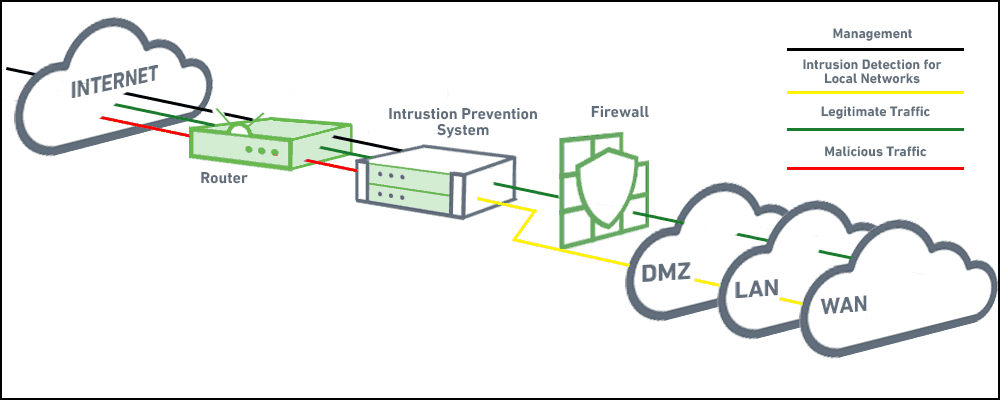
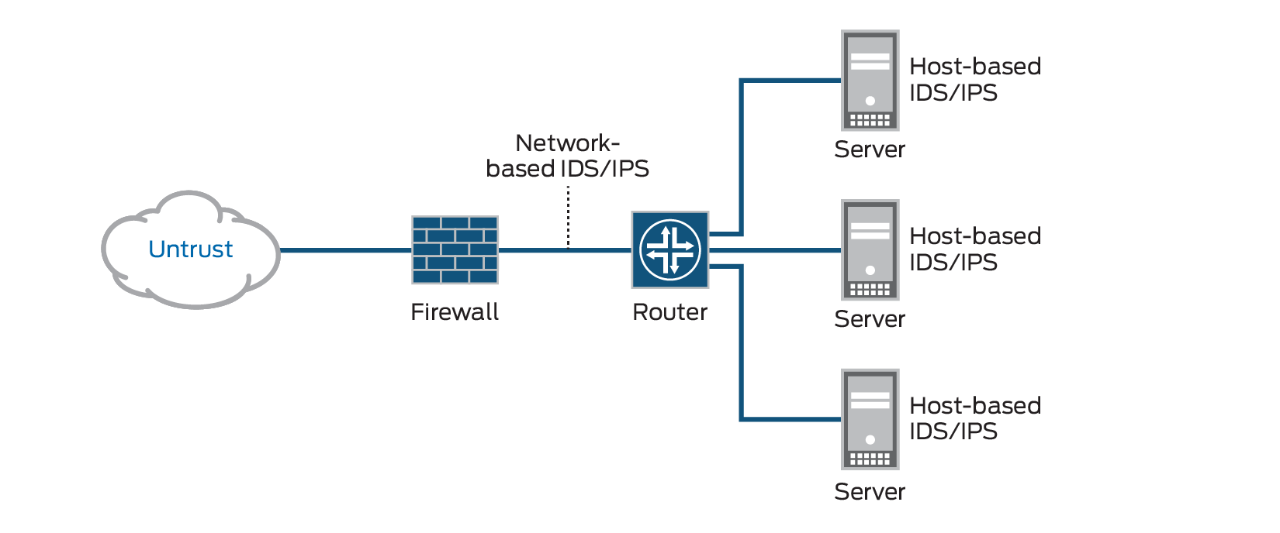
 An intrusion detection system (IDS) is a device or software application that monitors network or system activities for malicious activities or policy violations and produces reports to a management station. IDS come in a variety of “flavors” and approach the goal of detecting suspicious traffic in different ways. There are network based (NIDS) and host based (HIDS) intrusion detection systems.
 http://en.wikipedia.org/wiki/Intrusion_detection_system

  •  Intrusion prevention system
 Intrusion prevention systems (IPS), also known as intrusion detection and prevention systems (IDPS), are network security appliances that monitor network and/or system activities for malicious activity. The main functions of intrusion prevention systems are to identify malicious activity, log information about this activity, attempt to block/stop it, and report it
 http://en.wikipedia.org/wiki/Intrusion_prevention_system

  • IPS vs IDS vs Firewall
firewall prevents malicious traffic
Passive IDS: the IDS only reports that there was an intrusion.
Active IDS: the IDS also takes actions against the issue to fix it or at least lessen its impact.

Firewall - A device or application that analyzes packet headers and enforces policy based on protocol type, source address, destination address, source port, and/or destination port. Packets that do not match policy are rejected

Intrusion Detection System - A device or application that analyzes whole packets, both header and payload, looking for known events. When a known event is detected a log message is generated detailing the event.

Intrusion Prevention System - A device or application that analyzes whole packets, both header and payload, looking for known events. When a known event is detected the packet is rejected.

The IDS only monitors traffic. The IDS contains a database of known attack signatures. And it compares the inbound traffic against to the database. If an attack is detected then the IDS reports the attack.

http://security.stackexchange.com/questions/44931/difference-between-ids-and-ips-and-firewall


  • The differences between an IDS and a firewall are that the latter prevents malicious traffic, whereas the IDS:

    Passive IDS: the IDS only reports that there was an intrusion.
    Active IDS: the IDS also takes actions against the issue to fix it or at least lessen its impact.

However, what's the difference between an IPS and a Firewall? Both are a preventative technical control whose purpose is to guarantee that incoming network traffic is legitimate.


    Firewall - A device or application that analyzes packet headers and enforces policy based on protocol type, source address, destination address, source port, and/or destination port. Packets that do not match policy are rejected.
    Intrusion Detection System - A device or application that analyzes whole packets, both header and payload, looking for known events. When a known event is detected a log message is generated detailing the event.
    Intrusion Prevention System - A device or application that analyzes whole packets, both header and payload, looking for known events. When a known event is detected the packet is rejected.


http://security.stackexchange.com/questions/44931/difference-between-ids-and-ips-and-firewall


  • WAF vs IPS
IPS’s deal with packets, while WAF’s work within sessions

WAFs must understand not just protocol behavior, like HTTP GET, POST, HEAD, etc, but also JavaScript, SQL, HTML, XML, Cookies, etc. This application layer logic is fundamental to the operation of a WAF but not required for IPS functionality, and therefore not typically implemented on an IPS

Baselining is available on IPS and WAF, but the similarity stops with the name. IPS baselining consists of statistical deviations in throughput and traffic flows. WAF baselining involves URL, Parameter, HTTP Method, Session, and Cookie mapping. A WAF knows no concept of bandwidth utilization for baselining, just an IPS doesn’t know if a given URL is supposed to accept HTTP POSTs or GETs.

IPS signatures are looked at by companies as a means to virtually patch their PC’s ahead of an actual being patch or update being available or fully rolled out. This level of protection isn’t available on an IPS when specific application-layer vulnerabilities exist or when custom written web-application code has some new vulnerability. This is where the WAF provides a measure of protection not available on an IPS, due to the application-awareness of the WAF.

WAF deployments are focused on web applications and web application traffic, while IPS deployments are typically done at the network level inspecting all packets.
https://practical.wordpress.com/2009/12/28/waf-vs-ips-or-four-things-your-ips-cant-do/

  • Security: IDS vs. IPS Explained
an IPS has all the features of a good IDS, but can also stop malicious traffic from invading the enterprise.
In addition, an IPS can respond to a detected threat in two other ways. It can reconfigure other security controls, such as a firewall or router, to block an attack. Some IPS devices can even apply patches if the host has particular vulnerabilities. In addition, some IPS can remove the malicious contents of an attack to mitigate the packets, perhaps deleting an infected attachment from an email before forwarding the email to the user.
http://www.comparebusinessproducts.com/fyi/ids-vs-ips

  • Intrusion Detection FAQ: What is the difference between an IPS and a Web Application Firewall?
An IPS generally sits in-line and watches network traffic as the packets flow through it. It acts similarly to an Intrusion Detection System (IDS) by trying to match data in the packets against a signature database or detect anomalies against what is pre-defined as "normal" traffic
WAFs are designed to protect web applications/servers from web-based attacks that IPSs cannot prevent. In the same regards as an IPS, WAFs can be network or host based. They sit in-line and monitor traffic to and from web applications/servers. Basically, the difference is in the level of ability to analyze the Layer 7 web application logic.
https://www.sans.org/security-resources/idfaq/ips-web-app-firewall.php


  • Perimeter’s Host Intrusion Detection and Prevention System (HIDS/HIPS) is our premier
service designed to protect your most critical data and servers on your network. It
provides an additional layer of defense beyond services such as a managed firewall,
Network Intrusion Prevention Systems (NIPS) and signature-based anti virus software.
HIDS/HIPS relies on a learning pattern for both known and unknown types of malicious
activity. Rather than relying on signature matching for specific attacks, the behavior-
based rules associated with HIDS/HIPS products monitor and deny malicious activity
patterns. HIDS/HIPS monitors and alerts security operations personnel if activity is
suspicious
http://www.falkensecurenetworks.com/PDFs/HIDS-HIPS[1].pdf

  • Host based intrusion detection (HIDS) refers to intrusion detection that takes place on a single host system. Currently, HIDS involves installing an agent on the local host that monitors and reports on the system configuration and application activity. Some common abilities of HIDS systems include log analysis, event correlation, integrity checking, policy enforcement, rootkit detection, and alerting1. They often also have the ability to baseline a host system to detect variations in system configuration.
https://www.sans.org/security-resources/idfaq/what-is-a-host-intrusion-detection-system/1/24

  •  "OSSEC is an Open Source Host-based Intrusion Detection System. It performs log analysis, file integrity checking, policy monitoring, rootkit detection, real-time alerting and active response. It runs on most operating systems, including Linux, MacOS, Solaris, HP-UX, AIX and Windows.
http://ossec.github.io/

  •  The Samhain host-based intrusion detection system (HIDS) provides file integrity checking and log file monitoring/analysis, as well as rootkit detection, port monitoring, detection of rogue SUID executables, and hidden processes.Samhain been designed to monitor multiple hosts with potentially different operating systems, providing centralized logging and maintenance, although it can also be used as a standalone application on a single host.Samhain is an open-source multiplatform application for POSIX systems (Unix, Linux, Cygwin/Windows).
http://la-samhna.de/samhain/index.html


  • HIDS vs NIDS and which one is better and why?

It’s just that the placement in different. HIDS is placed on each host whereas NIDS is placed in the network. For an enterprise, NIDS is preferred as HIDS is difficult to manage, plus it consumes processing power of the host as well.
https://www.greycampus.com/blog/information-security/top-cyber-security-interview-questions

  • Snort

Snort® is an open source network intrusion prevention and detection system (IDS/IPS) developed by Sourcefire.
http://www.snort.org/

  • Differences Between IPS and Firewalls


An IPS will inspect content of the request and be able to drop, alert, or potentially clean a malicious network request based on that content.
A firewall will block traffic based on network information such as IP address, network port and network protocol. 

https://its.umich.edu/enterprise/wifi-networks/network-security/ips-vs-firewalls

  • A firewall permits and blocks traffic by port/protocol rules.  However, an attacker can use legitimate ports to send illegitimate traffic.  An IPS looks at the contents of the packets and/or can correlate over time to determine if an attack is happening.  An IPS works in tandem with a firewall to make sure that the traffic the firewall permitted is actual legitimate traffic.
https://learningnetwork.cisco.com/s/question/0D53i00000KstPg/ips-vs-firewall


Thursday, September 4, 2014

Terms,Organizations

  • The Single Euro Payments Area (SEPA) is a payment-integration initiative of the European Union for simplification of bank transfers denominated in euro. As of February 2014, SEPA consists of the 28 EU member states, the four members of the EFTA (Iceland, Liechtenstein, Norway and Switzerland), Monaco and San Marino
  •  The European Free Trade Association (EFTA) is a free trade organisation between four European countries that operates in parallel with – and is linked to – the European Union (EU). The EFTA was established on 3 May 1960 as a trade bloc-alternative for European states who were either unable or unwilling to join the then-European Economic Community (EEC) which has now become the EU  

credit card

  • AVS (Address Verification Service): determines if the address provided by the customer matches the address of the credit card


  • CVV (Code Verification Value): the three or four digit number on the back of a credit card
providing these numbers ensures that the card is in the hand of its owner
This is also known as CSC (Card Security Code), CVC (Card Verification Code), and V-Code,depending on the card scheme norms and region

Backend as a service (BaaS)

These services are provided via the use of custom software development kits (SDKs) and application programming interfaces (APIs)

Platform as a service (PaaS)

  • Minishift is a tool that helps you run OpenShift locally by launching a single-node OpenShift cluster inside a virtual machine. With Minishift you can try out OpenShift or develop with it, day-to-day, on your local machine.

  • https://www.openshift.org/minishift/

  • OpenShift Online is Red Hat’s public cloud application development and hosting service. On-Demand Access.

  •     OpenShift Dedicated is Red Hat’s managed private cluster offering for Enterprises. Own OpenShift cluster + operated by Red Hat.
        OpenShift Container Platform  is Red Hat’s on-premise private PaaS product. Whether it’s on premise in customer data center or private cloud.

    OpenShift Origin is the upstream community project used in OpenShift Online, OpenShift Dedicated, and OpenShift Container Platform.

    There are 3 quick installation methods:
        1Running in a Container (from DockerHub) – Only for Red Hat based distributions, RHEL, Fedora and CentOS.
        2Download a Binary (GitHub). This is an all-in-one version. Pay attention with this option, because versions for Windows and Mac are limited.
    3Building from source, locally or using Vagrant.

        Minishift is an upstream community project that is intended for OpenShift Origin. Minishift is a tool that helps you run OpenShift locally by launching a single-node OpenShift Origin cluster inside a virtual machine.


    https://blog.novatec-gmbh.de/getting-started-minishift-openshift-origin-one-vm/


  • Openshift Origin is the upstream community project that builds up OpenShift platform. Openshift origin is built around a core of Docker container, using Kubernetes for cluster containers orchestration. Openshift origin includes also a functional Web application and a CLI interface to build up and manage your applications.
  • http://www.mastertheboss.com/soa-cloud/openshift/openshift-installation-quick-tutorial

  • Docker and OpenShift Origin must run on the Linux operating system.

  • If you wish to run the server from a Windows or Mac OS X host, you should start a Linux VM first.
     
    OpenShift Origin and Docker use iptables to manage networking.
    Ensure that local firewall rules and other software making iptable changes do not alter the OpenShift Origin and Docker service setup.

    Installation Methods
    Method 1: Running in a Container

    https://docs.openshift.org/latest/getting_started/administrators.html

  • Minimum Hardware Requirements


  • OpenShift Origin only supports servers with the x86_64 architecture.

    Masters
    Physical or virtual system, or an instance running on a public or private IaaS.
    Base OS: Fedora 21, CentOS 7.3, RHEL 7.3, or RHEL 7.4 with the "Minimal" installation option and the latest packages from the Extras channel, or RHEL Atomic Host 7.3.6 or later.
    2 vCPU.
    Minimum 16 GB RAM.
    Minimum 40 GB hard disk space for the file system containing /var/.
    Minimum 1 GB hard disk space for the file system containing /usr/local/bin/.
    Minimum 1 GB hard disk space for the file system containing the system’s temporary directory


    Nodes
    Physical or virtual system, or an instance running on a public or private IaaS.
    Base OS: Fedora 21, CentOS 7.3, RHEL 7.3, or RHEL 7.4 with "Minimal" installation option, or RHEL Atomic Host 7.3.6 or later.
    NetworkManager 1.0 or later.
    1 vCPU.
    Minimum 8 GB RAM.
    Minimum 15 GB hard disk space for the file system containing /var/.
    Minimum 1 GB hard disk space for the file system containing /usr/local/bin/.
    Minimum 1 GB hard disk space for the file system containing the system’s temporary directory
    An additional minimum 15 GB unallocated space to be used for Docker’s storage back end


    External etcd Nodes
    Minimum 20 GB hard disk space for etcd data.

    Configuring Core Usage
    For example, run the following before starting the server to make OpenShift Origin only run on one core:
    # export GOMAXPROCS=1
    Alternatively, if you plan to run OpenShift in a container, add -e GOMAXPROCS=1 to the docker run command when launching the server.

    SELinux
    Security-Enhanced Linux (SELinux) must be enabled on all of the servers before installing OpenShift Origin or the installer will fail. Also, configure SELINUXTYPE=targeted in the /etc/selinux/config file:
    # This file controls the state of SELinux on the system.
    # SELINUX= can take one of these three values:
    #     enforcing - SELinux security policy is enforced.
    #     permissive - SELinux prints warnings instead of enforcing.
    #     disabled - No SELinux policy is loaded.
    SELINUX=enforcing
    # SELINUXTYPE= can take one of these three values:
    #     targeted - Targeted processes are protected,
    #     minimum - Modification of targeted policy. Only selected processes are protected.
    #     mls - Multi Level Security protection.
    SELINUXTYPE=targeted

    NTP
    You must enable Network Time Protocol (NTP) to prevent masters and nodes in the cluster from going out of sync.
    Set openshift_clock_enabled to true in the Ansible playbook to enable NTP on masters and nodes in the cluster during Ansible installation.
    # openshift_clock_enabled=true

    Environment Requirements
    Adding entries into the /etc/hosts file on each host is not enough. This file is not copied into containers running on the platform.

    Key components of OpenShift Origin run themselves inside of containers and use the following process for name resolution:
    By default, containers receive their DNS configuration file (/etc/resolv.conf) from their host.
    OpenShift Origin then inserts one DNS value into the pods (above the node’s nameserver values). That value is defined in the /etc/origin/node/node-config.yaml file by the dnsIP parameter, which by default is set to the address of the host node because the host is using dnsmasq
    If the dnsIP parameter is omitted from the node-config.yaml file, then the value defaults to the kubernetes service IP, which is the first nameserver in the pod’s /etc/resolv.conf file.

    DNSMSQ must be enabled (openshift_use_dnsmasq=true) or the installation will fail and critical features will not function


    The following is an example set of DNS records for the Single Master and Multiple Nodes scenario:

    master    A   10.64.33.100
    node1     A   10.64.33.101
    node2     A   10.64.33.102

    Configuring Hosts to Use DNS
    The configuration for hosts' DNS resolution depend on whether DHCP is enabled.

    If DHCP is:
    Disabled, then configure your network interface to be static, and add DNS nameservers to NetworkManager.

    If DHCP is:
    Enabled, then the NetworkManager dispatch script automatically configures DNS based on the DHCP configuration.

    To verify that hosts can be resolved by your DNS server:
    Check the contents of /etc/resolv.conf:
    $ cat /etc/resolv.conf
    # Generated by NetworkManager
    search example.com
    nameserver 10.64.33.1
    # nameserver updated by /etc/NetworkManager/dispatcher.d/99-origin-dns.sh

    Test that the DNS servers listed in /etc/resolv.conf are able to resolve host names to the IP addresses of all masters and nodes in your OpenShift Origin environment:
    $ dig <node_hostname> @<IP_address> +short
    $ dig master.example.com @10.64.33.1 +short
    10.64.33.100
    $ dig node1.example.com @10.64.33.1 +short
    10.64.33.101


    Configuring a DNS Wildcard
    Optionally, configure a wildcard for the router to use, so that you do not need to update your DNS configuration when new routes are added.


    https://docs.openshift.org/latest/install_config/install/prerequisites.html#install-config-install-prerequisites

  • To simplify the task of setting up and operating containers, the use of a container management tool is essential. These solutions, known as container orchestration tools, help operations staff decide where to run containers, how to run them in production, and which systems to put them on

  • OpenShift, Red Hat’s PaaS solution for enterprise applications, uses Docker and Kubernetes as its underlying container management engines. OpenShift is a powerful resource for orchestrating containerization at the enterprise level.

    The OpenShift Online Starter plan, which can handle one project, is free.

    Docker is the leading provider of containerization tools.
    Docker has helped foster the DevOps revolution by facilitating collaboration between developers and operators, accelerating the process of creating and deploying applications.
    Kubernetes is a container orchestration engine.
    It offers an open source platform to manage the deployment and use of containers across your IT infrastructure.
    https://shadow-soft.com/open-source-container-management-tools/

  • OpenShift Online has been completely rewritten, enabling you to rapidly build and deploy Docker images and manage them on a robust, scalable platform. The power of Docker containers and the Kubernetes container cluster manager optimized for enterprise app development and deployment.OpenShift is Red Hat's Platform-as-a-Service (PaaS) that allows developers to quickly develop, host, and scale applications in a cloud environment.
https://www.openshift.com

  • Source-to-Image (S2I) is a toolkit and workflow for building reproducible Docker images from source code.
S2I produces ready-to-run images by injecting source code into a Docker container and letting the container prepare that source code for execution.
By creating self-assembling builder images, you can version and control your build environments exactly like you use Docker images to version your runtime environments.
https://github.com/openshift/source-to-image

  • OpenShift is designed to run any existing Docker images. Additionally, you can define builds that will produce new Docker images using a Dockerfile.
https://github.com/openshift/origin

  • Source-to-Image (S2I) is a mechanism for building custom Docker images. It produces ready-to-run images by injecting application source into a Docker image and assembling a new Docker image. The new image incorporates the base image and built source

So let's say you want to load the image "openshift/wildfly-100-centos7" and produce a new image using the source code available on https://github.com/fmarchioni/mastertheboss in the folder "openshift-demo"
(Have a look at the application here: https://github.com/fmarchioni/mastertheboss/tree/master/openshift-demo)
http://www.mastertheboss.com/soa-cloud/openshift/deploy-docker-images-on-openshift


  • Openshift uses Image Streams to reference a Docker image. An image stream comprises one or more Docker images identified by tags. It presents a single virtual view of related images, similar to a Docker image repository, and may contain images from any of the following:
    Its own image repository in OpenShift’s integrated Docker Registry
    Other image streams
    Docker image repositories from external registries 
http://www.mastertheboss.com/soa-cloud/openshift/using-wildfly-on-openshift

  • When deployed on OpenStack, OpenShift Origin can be configured to access OpenStack infrastructure, including using OpenStack Cinder volumes as persistent storage for application data.

https://docs.openshift.org/latest/install_config/configuring_openstack.html#install-config-configuring-openstack

  • OpenShift can build Docker images from your source code, deploy them, and manage their lifecycle. To enable this, OpenShift provides an internal, integrated Docker registry that can be deployed in your OpenShift environment to locally manage images.

https://docs.openshift.com/enterprise/3.1/install_config/install/docker_registry.html

  • geard is a command-line client and agent for integrating and linking Docker containers into systemd across multiple hosts. It is the core of the next generation of OpenShift Origin and helps administrators install and manage the components of their developers' applications
http://openshift.github.io/geard/

  • Use immutable infrastructure to deploy and scale your containerized applications. Project Atomic builds OSes, tools, and containers for cloud native platforms.
Atomic Host provides "immutable infrastructure" for deploying to hundreds or thousands of servers in your private or public cloud.
http://www.projectatomic.io/

direct debit

A direct debit or direct withdrawal is a financial transaction in which one person withdraws funds from another person's bank account. Formally, the person who directly draws the funds ("the payee") instructs his or her bank to collect (i.e., debit) an amount directly from another's ("the payer's") bank account designated by the payer and pay those funds into a bank account designated by the payee.
Before the payer's banker will allow the transaction to take place, the payer must have advised the bank that he or she has authorized the payee to directly draw the funds. It is also called pre-authorized debit (PAD) or pre-authorized payment (PAP)

In countries where setting up authorization is easy enough, direct debits can also be used for irregular payments, such as for mail order transactions or at a point of sale.

payee

payee
the person or organization to whom money, especially a cheque, must be paid

payment service provider (PSP)

A payment service provider (PSP) offers (web) shops online services for accepting electronic payments by a variety of payment methods including credit card, bank-based payments such as direct debit, bank transfer, and real-time bank transfer based on online banking.

Typically, they use a software as a service model and form a single payment gateway for their clients (merchants) to multiple payment methods

Saturday, July 19, 2014

cd dvd formats

  • CD-R (compact disc recordable)
CD-RW (compact disc re-writable)
DVD (Digital Versatile Disc)
DVD-RW    Digital Versatile Disc - Rewriteable


  • The DVD-R DVD+R difference can easily be summarized by the following:

* The DVD-R/RW standard was developed by Pioneer, and is used primarily
by Apple and Pioneer. These “minus” discs can only be written to in one
layer on the discs surface. In addition, this format is supported by the DVD
forum, but is in no way an industry standard. DVD-R/RW discs are cheaper
than the “plus” format.
* The DVD+R/RW format is supported by Philips, Dell, Sony, HP, and Mcft.
These discs can be written to in multiple layers, giving them s1
Slightly better and more disc storage than the “minus” format. Because of this additional capacity, they are slightly more expensive than “minus” discs.
http://faalacademy.wordpress.com/2013/05/10/the-difference-between-dvd-r-dvdr-dvdrw-and-dvd-rw/

  • Overview of DVD Recordable: +R Versus -R
1) The DVD-R (pronounced "DVD dash R") and -RW media formats are officially approved by the standards group DVD Forum. The DVD Forum was founded by Mitsubishi, Sony, Hitachi, and Time Warner, so it has tremendous industry support for its technical standards.
2) DVD+R ("DVD plus” R) and +RW formats are not approved by the DVD Forum standards group, but are instead supported by the DVD+RW Alliance. The DVD+RW Alliance is supported by Sony, Yamaha, Philips, Dell, and JP, so it also has tremendous industry support for its technical standards. Note that Sony supports both organizations.

The main functional differences between DVD-R and DVD+R are:
1) the DVD recorder's built-in defects management,
2) the way the recorders format and rewrite DVDs,
3) the price.

According to the claims of the DVD Alliance, using a DVD+R/+RW recorder will let you do the following:

1. Instantly eject without having to wait for finalized formatting.

2. Ability to record one DVD disc partially on PC and partially on television.

3. Background formatting: while the disc is being formatted, you can simultaneously record on already-formatted portions of the same disc.

4. Enhanced ability to edit filenames, movie and song titles, and playlists.

5. 100% compatibility with all other DVD players, while still enjoying these extra recording features.
http://netforbeginners.about.com/cs/multimedia/a/DVD_explained_2.htm

Thursday, July 10, 2014

literal

  • In computer science, a literal is a notation for representing a fixed value in source code.
In contrast to literals, variables or constants are symbols that can take on one of a class of fixed values, the constant being constrained not to change.
Literals are often used to initialize variables, for example, in the following, 1 is an integer literal and the three letter string in "cat" is a string literal:
 int a = 1;
 String s = "cat";

 http://en.wikipedia.org/wiki/Literal_%28computer_programming%29

Static Import in Java


  • import static java.lang.Math.PI;
double r = cos(PI * theta);

http://viralpatel.net/blogs/static-import-java-example-tutorial/

  • Static import can reduce code size and allow you to freely use static field of external class without prefixing class name on that
http://javarevisited.blogspot.com/2012/10/what-is-static-import-in-java-5-example-tutorial.html#ixzz370mlCrPP

BigDecimal

  • How to Use Java BigDecimal
Ability to specify a scale, which represents the number of digits after the decimal place
Ability to specify a rounding method
The java.math.BigDecimal class handles both of these considerations.

suppose we have a product which costs 10.00 in a given currency and the local sales tax is 0.0825, or 8.25%. If we work it out on paper, the tax amount is,
10.00 * 0.0825 = 0.825
Because our precision for the currency is two digits after the decimal, we need to round the 0.825 figure. Also, because this is a tax, it is good practice to always round up to the next highest cent. That way when the accounts are balanced at the end of the day, we never find ourselves underpaying taxes.
0.825 -> 0.83
so the total we charge to the customer is 10.83 in the local currency and pay 0.83 to the tax collector. Note that if we sold 1000 of these, we would have overpaid the collector by this much,
1000 * (0.83 - 0.825) = 5.00

http://www.opentaps.org/docs/index.php/How_to_Use_Java_BigDecimal:_A_Tutorial


  • The java.math.BigDecimal class provides operations for arithmetic, scale manipulation, rounding, comparison, hashing, and format conversion.
Two types of operations are provided for manipulating the scale of a BigDecimal:

    scaling/rounding operations
    decimal point motion operations.
http://www.tutorialspoint.com/java/math/java_math_bigdecimal.htm

CamelCase Java Naming Convention

CamelCase Java Naming Convention
CamelCase (also known as Upper CamelCase) is where each new word begins with a capital letter (e.g., CamelCase, CustomerAccount, PlayingCard).
http://java.about.com/od/javasyntax/a/nameconventions.htm

Monday, July 7, 2014

association vs composition

COMPOSITION
Imagine a software firm that is composed of different Business Units (or departments) like Storage BU, Networking BU. Automobile BU. The life time of these Business Units is governed by the lifetime of the organization. In other words, these Business Units cannot exist independently without the firm. This is COMPOSITION. (ie the firm is COMPOSED OF business units)

ASSOCIATION
The software firm may have external caterers serving food to the employees. These caterers are NOT PART OF the firm. However, they are ASSOCIATED with the firm. The caterers can exist even if our software firm is closed down. They may serve another firm! Thus the lifetime of caterers is not governed by the lifetime of the software firm. This is typical ASSOCIATION

http://stackoverflow.com/questions/731802/what-is-the-difference-between-composition-and-association-relationship

Wednesday, June 25, 2014

ARM architecture


  • ARM architecture
ARM is a family of instruction set architectures for computer processors based on a reduced instruction set computing (RISC) architecture developed by British company ARM Holdings.
A RISC-based computer design approach means ARM processors require significantly fewer transistors than typical CISC x86 processors in most personal computers.
This approach reduces costs, heat and power use.
These are desirable traits for light, portable, battery-powered devices—​including smartphones, laptops, tablet and notepad computers, and other embedded systems.
http://en.wikipedia.org/wiki/ARM_architecture

Tuesday, June 24, 2014

There are four different ways to create objects in java

  • There are four different ways to create objects in java

1. The new keyword
2. The Class.forName()
3. The clone() method
4. The object deserialization

https://www.linkedin.com/groups/What-are-all-different-ways-70526.S.5883998172040155140?view=&item=5883998172040155140&type=member&gid=70526&trk=eml-b2_anet_digest-null-75-null&fromEmail=fromEmail&ut=3f1ocViNIMOCg1

http://javabeginnerstutorial.com/core-java-tutorial/different-ways-to-create-an-object-in-java/

Personal Package Archives

  • Personal Package Archives (PPA) allow you to upload Ubuntu source packages to be built and published as an apt repository by Launchpad.
https://launchpad.net/ubuntu/+ppas

Saturday, June 14, 2014

Model View ViewModel

  • Model View ViewModel
Model View ViewModel
Model View ViewModel (MVVM) is an architectural pattern for software development.
MVVM is a variation of Martin Fowler's Presentation Model design pattern.
Model View ViewModel is also called model-view-binder, especially in implementations that don't involve the .NET platform

Components of the MVVM pattern
Model
Model refers either to a domain model, which represents the real state content (an object-oriented approach), or to the data access layer that represents that content (a data-centric approach)
View
As in the MVC and MVP patterns, the view is the user interface (UI).
View model
The view model is an abstraction of the view that exposes public properties and commands. Instead of the controller of the MVC pattern, or the presenter of the MVP pattern, MVVM has a binder. In the view model, this binder mediates communication between the view and the data binder.The view model has been described as a state of the data in the model.
Binder
Declarative data- and command-binding are implicit in the MVVM pattern. In the Microsoft solution stack, the binder is a markup language called XAML.[7] The binder frees the developer from being obliged to write boiler-plate logic to synchronise the view model and view. When implemented outside of the Microsoft stack the presence of a declarative databinding technology is a key enabler of the pattern
http://en.wikipedia.org/wiki/Model_View_ViewModel

Monday, May 26, 2014

New features in Java 1.8

  •     Lambda expressions
    Remove the Permanent Generation
    Small VM
    Parallel Array Sorting
    Bulk Data Operations for Collections
    Define a standard API for Base64 encoding and decoding
    New Date & Time API
    Provide stronger Password-Based-Encryption (PBE) algorithm implementations in the SunJCE provider

   
    http://ttux.net/post/java-8-new-features-release-performance-code/